 小雨同学 2026-06-04 07:27:10 发布
前言
我在处理 OCR 图片预览页时,真正需要关注的不是页面能不能被拆成上下两块,而是折痕区域到底落在页面里的哪个位置。Pura X Max 进入悬停态后,系统会把真实折痕可视化出来,模拟器里那条蓝色区域就是设备层面的折痕位置。业务页面要做的是避让这块区域,而不是再画一条自己的折痕条。
这类页面很适合悬停态。上半屏用来展示原图、视频、相机取景或 OCR 预览,下半屏用来放识别结果、控制按钮和操作切换。用户把设备半折放在桌面上时,上面看内容,下面处理结果,任务关系是成立的。Pura X Max 外屏是 5.4 英寸,内屏是 7.7 英寸,系统版本是 HarmonyOS 6.1,内外屏尺寸变化和半折姿态都会影响页面可用空间。
这次我会把方案拆成三层。
- 第一层是设备姿态层,负责读取折叠状态、横竖屏和折痕区域。
- 第二层是折痕策略层,负责判断折痕方向、上下半屏高度和折痕间隔。
- 第三层是页面布局层,只根据策略结果渲染普通布局或悬停态上下屏。
这样页面不会到处直接调用设备 API,也不会把系统折痕坐标错当成页面内部坐标。
HarmonyOS 的 display 能力提供了折叠设备状态、折痕区域等接口,getCurrentFoldCreaseRegion() 可以获取当前显示模式下的折痕区域。FolderStack 也提供了面向折叠屏悬停能力的容器方案,通过 upperItems 把指定组件移动到上半屏并避让折痕。这个页面采用更细的策略层处理方式,因为 OCR 预览页需要把全局折痕区域转换成页面内部坐标,再用它计算上半屏、折痕间隔和下半屏高度。

一、精准判断折痕区域
1.1 系统折痕是全局区域
模拟器里显示出来的蓝色折痕区,代表系统层面的折痕位置。它不是业务页面内部自己计算出来的卡片区域。业务页面如果又手动画一条折痕避让条,就很容易出现两条折痕不一致的情况。一个是系统真实折痕,一个是页面自己画出来的视觉占位,位置错开以后,一眼就能看出方案不对。
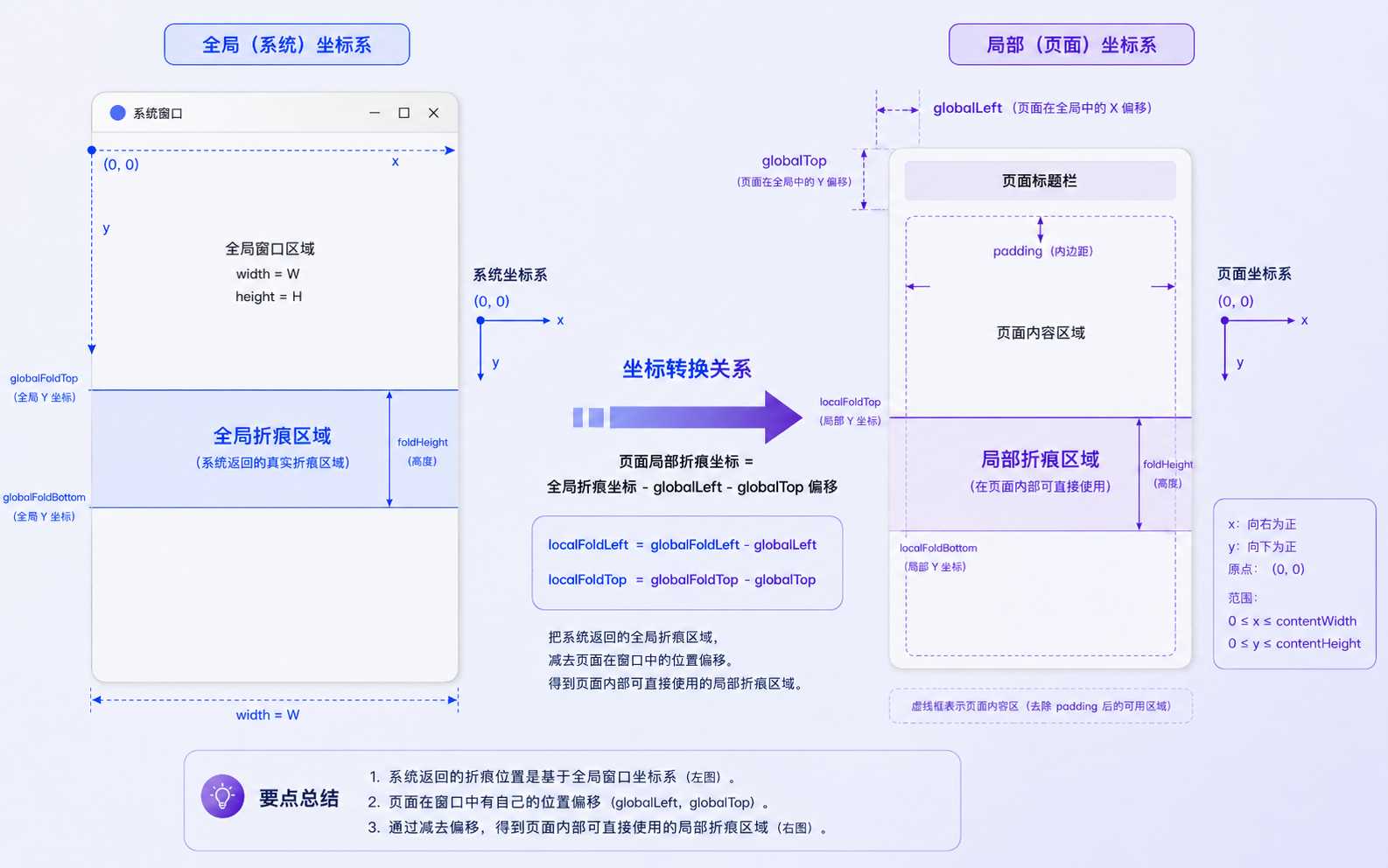
我更愿意把折痕看成一段需要避开的全局区域。它的原始信息来自显示设备,返回的是屏幕坐标。业务页面真正要使用这段信息时,还要结合当前页面的全局位置,把它换算成页面内部的局部坐标。
这个区别可以用一张表先拆开。
| 信息 | 来源 | 用途 |
|---|---|---|
| 全局折痕区域 | display.getCurrentFoldCreaseRegion() | 表示设备屏幕上的真实折痕位置 |
| 页面全局位置 | onAreaChange 的 globalPosition | 表示当前业务页面在屏幕里的位置 |
| 页面局部折痕 | 全局折痕减去页面全局位置 | 用来计算页面内部上半区、折痕间隔和下半区 |
这个换算很关键。页面不是从屏幕左上角直接开始,它上面可能有状态栏、标题栏、导航区,内部也可能有 padding。把全局折痕的 top 直接当成页面内部 top 使用,就会出现避让区偏移。
1.2 姿态信息统一收集
我会先把设备姿态和折痕区域统一收起来。页面需要的是标准化之后的结果,不应该每个页面都自己去判断设备是否可折叠、当前是否半折、折痕区域有没有值。
在完整代码里,我把这部分做成几个函数:
- getCurrentDevicePostureMode() 获取当前折叠姿态
- getCurrentCreaseRegionVp() 获取折痕区域并转换成 vp
- toLocalCreaseRegion() 把全局折痕区域转换成页面内部折痕区域
- canUseTopBottomHoverLayout() 判断是否适合上下屏
这几个函数对应的职责不同。设备姿态层只负责拿数据,折痕策略层负责判断,页面层负责渲染。这个拆法能避免页面代码越来越乱。
private refreshDeviceLayout() { this.postureMode = getCurrentDevicePostureMode(); this.globalCreaseRegion = getCurrentCreaseRegionVp(this.getUIContext());}这个函数只做一件事,把当前设备姿态和折痕区域刷新到页面状态里。后面窗口尺寸变化、页面出现、设备姿态变化,都可以调用它。真实项目里还可以把它放到统一的姿态服务中,通过 AppStorage 或状态管理分发给多个页面。
二、折痕的转换计算
2.1 页面要使用局部折痕
折痕区域进入页面布局之前,需要先从全局坐标转换成局部坐标。这个步骤解决的是错位问题。系统折痕位置是正确的,页面自己计算出来的位置偏了,通常就是没有处理页面自身的全局偏移。
代码里我用 toLocalCreaseRegion() 做这个转换:
function toLocalCreaseRegion( creaseRegion: number[], pageGlobalLeft: number, pageGlobalTop: number): number[] { const info = normalizeCreaseInfo(creaseRegion); if (info.width <= 0 || info.height <= 0) { return [0, 0, 0, 0]; } return [ Math.max(0, info.left - pageGlobalLeft), Math.max(0, info.top - pageGlobalTop), info.width, info.height ];}这里的 pageGlobalTop 来自页面内容区域的 onAreaChange。我不会用整屏高度来算,也不会用标题栏外面的坐标来算。真正参与上下屏分配的是内容区域,所以折痕要换算到内容区域内部。
这个函数看起来简单,但它决定了折痕避让能不能对准。页面上半区的高度来自局部折痕的 top,中间间隔来自局部折痕的 height。如果这两个值没有转换对,业务页面就会避开错误位置。
2.2 当前页面只在横向折痕下进入上下屏
Pura X Max 的悬停态上下屏,处理的是中间横向折痕带来的页面分区。上半屏适合展示原图、视频画面、相机取景这类预览内容;下半屏适合放识别结果、控制按钮和模式切换。当前这个 OCR 预览页只在检测到横向折痕,并且上下两块区域都满足最小高度时,才进入上半屏预览、下半屏控制的布局。
策略层里仍然保留折痕方向判断。这里的 Vertical 分支不是给 Pura X Max 当前悬停态做主场景说明,它只是让工具函数在遇到其他设备形态、异常折痕数据或后续通用布局场景时不会直接误判。当前页面真正使用的是 Horizontal,如果检测结果不是横向折痕,就回到普通布局,或者交给其他布局策略处理。
function getCreaseOrientation(creaseRegion: number[]): FoldCreaseOrientation { const info = normalizeCreaseInfo(creaseRegion); if (info.width <= 0 || info.height <= 0) { return FoldCreaseOrientation.None; } if (info.width > info.height * CREASE_ORIENTATION_RATIO) { return FoldCreaseOrientation.Horizontal; } if (info.height > info.width * CREASE_ORIENTATION_RATIO) { return FoldCreaseOrientation.Vertical; } return FoldCreaseOrientation.None;}这个函数后面会被 canUseTopBottomHoverLayout() 使用。也就是说,页面并不会因为设备处于折叠状态就直接进入上下屏,而是要继续确认折痕方向、折痕位置、上半屏高度和下半屏高度。这样做可以避免把不适合上下屏的窗口状态也套进悬停态布局里。

三、上下屏由策略函数决定
3.1 上下两块都要有最低高度
有了横向折痕,也不代表页面一定能使用上下屏。上半区太矮时,预览内容放不下;下半区太矮时,识别结果和按钮会被压缩。真正进入悬停态上下屏之前,我会同时看上半区高度和下半区高度。
完整代码里用 canUseTopBottomHoverLayout() 做这个判断:
function canUseTopBottomHoverLayout(creaseRegion: number[], pageHeight: number): boolean { const info = normalizeCreaseInfo(creaseRegion); if (getCreaseOrientation(creaseRegion) !== FoldCreaseOrientation.Horizontal) { return false; } if (info.top <= 0 || info.height <= 0) { return false; } if (pageHeight <= 0) { return info.top >= MIN_TOP_PANE_HEIGHT; } const bottomPaneHeight = pageHeight - info.top - info.height; return info.top >= MIN_TOP_PANE_HEIGHT && bottomPaneHeight >= MIN_BOTTOM_PANE_HEIGHT;}这个函数里有两个最小高度。上半区至少要能放下预览卡片,下半区至少要能放下结果内容、切换按钮和底部操作区。少了这个判断,页面很容易出现上面能看、下面点不了,或者下面按钮还在、上面预览被压扁的问题。
我通常会按下面的关系去想。
| 区域 | 来源 | 页面作用 |
|---|---|---|
| 上半屏高度 | 局部折痕 top | 放预览内容 |
| 折痕间隔 | 局部折痕 height | 做避让,不放主内容 |
| 下半屏高度 | pageHeight - top - height | 放结果和操作 |
这个表比单纯写上下分区更准确。悬停态不是把页面平均分成两份,它要顺着真实折痕位置分配空间。
3.2 页面只拿结果,不重复判断
页面层不应该到处写折痕判断。它只需要调用策略函数,得到是否进入悬停布局、上半屏高度和折痕间隔。这样页面逻辑会清楚很多。
private shouldUseHoverLayout(): boolean { const localCreaseRegion = this.getEffectiveLocalCreaseRegion(); if (this.debugHoverMode) { return canUseTopBottomHoverLayout(localCreaseRegion, this.pageHeight); } return isHoverPosture(this.postureMode) && canUseTopBottomHoverLayout(localCreaseRegion, this.pageHeight);}private getTopPaneHeight(): number { return getHoverTopPaneHeight(this.getEffectiveLocalCreaseRegion(), this.pageHeight);}private getFoldGapHeightValue(): number { return getFoldGapHeight(this.getEffectiveLocalCreaseRegion());}这样写以后,页面渲染就变得很直接。能用上下屏时,按上半屏、折痕间隔、下半屏排列;不能用时,回到普通内容流。
if (this.shouldUseHoverLayout()) { this.HoverTopBottomLayout()} else { this.NormalLayout()}这也是我比较推荐的工程边界。姿态和折痕判断集中在策略函数里,页面只负责展示。后面如果最小高度要调整、折痕方向判断要修改,不需要在页面里到处改条件。
四、OCR 页面如何实现
4.1 上半屏只展示原图预览
OCR 页面很适合悬停态。上半屏展示原图,用户可以对照图片里的金额、日期、地点;下半屏展示识别结果、处理建议和原文,用户点击后可以切换不同内容。这个关系很清楚,上半屏负责看,下半屏负责处理。
这次示例里,上半屏不放主按钮,也不放复杂切换。普通窗口下,预览卡片会多显示几行说明;进入悬停上下屏后,预览区会减少次要说明,只留下标题和三条主要信息。这样上半屏不会被过多文字占满。
代码里的上半屏是 PreviewArea(),下半屏是 ControlArea()。页面进入悬停布局时,HoverTopBottomLayout() 会按照真实折痕结果分配高度:
@Builderprivate HoverTopBottomLayout() { Column() { Column() { this.PreviewArea() } .height(this.getTopPaneHeight()) .width('100%') .padding({ left: 18, right: 18, bottom: HOVER_CREASE_SAFE_MARGIN }) Column() .height(this.getFoldGapHeightValue()) .width('100%') Column() { this.ControlArea() } .layoutWeight(1) .width('100%') .padding({ left: 18, right: 18, top: HOVER_CREASE_SAFE_MARGIN, bottom: 18 }) } .width('100%') .height('100%')}中间那段空 Column() 不是为了画折痕,而是把真实折痕高度让出来。模拟器如果已经显示蓝色折痕区域,业务页面不需要再画一条蓝色条。它只要避开这段空间即可。
4.2 下半屏要区分内容和安全区
下半屏容易出现另一个问题。识别结果、选项切换、保存按钮、安全区如果全部堆在一个容器里,底部会变得很乱。尤其半折状态下,用户手部操作集中在下半屏,底部操作区要有清楚的边界。
我把 ControlArea() 拆成三块:
| 区域 | 承担内容 |
|---|---|
| 内容区 | 当前选中的识别结果、处理建议或原文 |
| 切换区 | 识别结果、处理建议、原文三个切换按钮 |
| 底部操作区 | 保存结果、重新识别、底部安全留白 |
这样拆开以后,点击三个切换按钮时,中间内容会真正变化;保存按钮和重新识别按钮也有自己的底部区域,不会和内容区混在一起。底部操作区还加了分隔线和安全留白,视觉上更接近真实应用里的底部操作区。

五、实际项目时怎么处理
5.1 调试折痕只留在示例里
完整代码里保留了一个调试折痕按钮。它的作用是让普通模拟器也能跑出上下屏结构,方便观察页面内容密度、底部操作区和切换区。真实项目里,这个按钮和 debugHoverMode 要删掉。
真实项目应该走这条路径:
- 页面出现或窗口变化时刷新设备姿态
- 获取当前折叠状态和折痕区域
- 把全局折痕转换成页面局部折痕
- 由策略函数判断是否进入上下屏
- 页面只根据结果渲染普通布局或悬停布局
这个路径里,业务页面不需要知道设备 API 的所有细节。页面只关心当前能不能进入上下屏,以及上半屏和折痕间隔分别是多少。
5.2 业务状态不要被姿态切换重置
悬停态切换只影响页面布局,不应该影响业务数据。比如当前 OCR 结果、选中的 Tab、保存次数、用户已经修改过的字段,都应该保留。
完整代码里,selectedAction 控制识别结果、处理建议、原文三个内容区;saveCount 记录保存次数。这些状态不会因为普通布局和悬停布局切换而重置。真实项目里,识别字段、校对结果、保存状态也应该用同样的思路处理。
5.3 有些页面不适合上下屏
OCR 预览页适合上下屏,因为它天然有预览和控制两块。长表单、长列表、长文档就不适合直接拆上下屏。它们需要连续阅读或连续填写,折痕会打断任务路径。
我会先按页面任务判断:
| 页面类型 | 是否适合上下屏 | 处理方式 |
|---|---|---|
| 图片预览 / OCR 校对 | 适合 | 上半屏原图,下半屏结果和按钮 |
| 视频 / 音频播放 | 适合 | 上半屏播放,下半屏控制 |
| 拍摄 / 训练 / 计时 | 适合 | 上半屏状态,下半屏操作 |
| 长表单 | 不太适合 | 保持完整表单,局部避让折痕 |
| 长列表 / 长文档 | 不太适合 | 保持滚动阅读,不强行上下拆 |
这张表也可以作为真实项目的判断清单。悬停态不是所有页面的新形态,它更适合内容和控制可以分开的页面。
总结
这次悬停态页面的实现,重点放在真实折痕区域上。设备姿态层负责获取折叠状态和折痕区域,策略层负责判断横向折痕、上下屏高度和折痕间隔,页面层只根据结果渲染普通布局或悬停布局。
OCR 预览页适合这个方案。上半屏用来对照原图,下半屏用来查看识别结果、处理建议和原文,再通过底部操作区完成保存或重新识别。中间折痕区域只做避让,不放主按钮,也不重复绘制一条页面自己的折痕条。
真实项目里,我会保留这几个边界:折痕坐标先转成页面局部坐标,横向折痕才进入上下屏,业务状态不跟着姿态变化重置,调试折痕只用于普通模拟器验证。这个边界守住以后,悬停态页面才不会把系统折痕和页面折痕画成两套东西。
附:完整代码
import { display } from '@kit.ArkUI';enum DevicePostureMode { Normal = 0, Folded = 1, Expanded = 2, Hover = 3}enum FoldCreaseOrientation { None = 0, Horizontal = 1, Vertical = 2}interface FoldCreaseInfo { left: number; top: number; width: number; height: number;}interface ResultItem { id: number; label: string; value: string;}const MIN_TOP_PANE_HEIGHT: number = 180;const MIN_BOTTOM_PANE_HEIGHT: number = 220;const CREASE_ORIENTATION_RATIO: number = 4;const HOVER_CREASE_SAFE_MARGIN: number = 12;function resolveDevicePostureMode(foldStatus: display.FoldStatus): DevicePostureMode { if (foldStatus === display.FoldStatus.FOLD_STATUS_FOLDED) { return DevicePostureMode.Folded; } if (foldStatus === display.FoldStatus.FOLD_STATUS_EXPANDED) { return DevicePostureMode.Expanded; } if (foldStatus === display.FoldStatus.FOLD_STATUS_HALF_FOLDED) { return DevicePostureMode.Hover; } return DevicePostureMode.Normal;}function getCurrentDevicePostureMode(): DevicePostureMode { try { if (!display.isFoldable()) { return DevicePostureMode.Normal; } const foldStatus = display.getFoldStatus(); return resolveDevicePostureMode(foldStatus); } catch (e) { return DevicePostureMode.Normal; }}function getCurrentCreaseRegionVp(uiContext: UIContext): number[] { try { if (!display.isFoldable()) { return [0, 0, 0, 0]; } const foldRegion = display.getCurrentFoldCreaseRegion(); if (!foldRegion || !foldRegion.creaseRects || foldRegion.creaseRects.length === 0) { return [0, 0, 0, 0]; } const rect = foldRegion.creaseRects[0]; const leftVp = uiContext.px2vp(rect.left); const topVp = uiContext.px2vp(rect.top); const widthVp = uiContext.px2vp(rect.width); const heightVp = uiContext.px2vp(rect.height); return [ Math.max(0, leftVp), Math.max(0, topVp), Math.max(0, widthVp), Math.max(0, heightVp) ]; } catch (e) { return [0, 0, 0, 0]; }}function isHoverPosture(postureMode: number): boolean { return postureMode === DevicePostureMode.Hover;}function normalizeCreaseInfo(creaseRegion: number[]): FoldCreaseInfo { if (!creaseRegion || creaseRegion.length === 0) { return { left: 0, top: 0, width: 0, height: 0 }; } if (creaseRegion.length >= 4) { return { left: Math.max(0, creaseRegion[0]), top: Math.max(0, creaseRegion[1]), width: Math.max(0, creaseRegion[2]), height: Math.max(0, creaseRegion[3]) }; } if (creaseRegion.length >= 2) { return { left: 0, top: Math.max(0, creaseRegion[0]), width: 9999, height: Math.max(0, creaseRegion[1]) }; } return { left: 0, top: 0, width: 0, height: 0 };}function getCreaseOrientation(creaseRegion: number[]): FoldCreaseOrientation { const info = normalizeCreaseInfo(creaseRegion); if (info.width <= 0 || info.height <= 0) { return FoldCreaseOrientation.None; } if (info.width > info.height * CREASE_ORIENTATION_RATIO) { return FoldCreaseOrientation.Horizontal; } if (info.height > info.width * CREASE_ORIENTATION_RATIO) { return FoldCreaseOrientation.Vertical; } return FoldCreaseOrientation.None;}function canUseTopBottomHoverLayout(creaseRegion: number[], pageHeight: number): boolean { const info = normalizeCreaseInfo(creaseRegion); if (getCreaseOrientation(creaseRegion) !== FoldCreaseOrientation.Horizontal) { return false; } if (info.top <= 0 || info.height <= 0) { return false; } if (pageHeight <= 0) { return info.top >= MIN_TOP_PANE_HEIGHT; } const bottomPaneHeight = pageHeight - info.top - info.height; return info.top >= MIN_TOP_PANE_HEIGHT && bottomPaneHeight >= MIN_BOTTOM_PANE_HEIGHT;}function getFoldGapHeight(creaseRegion: number[]): number { const info = normalizeCreaseInfo(creaseRegion); if (getCreaseOrientation(creaseRegion) !== FoldCreaseOrientation.Horizontal) { return 0; } return Math.max(0, info.height);}function getHoverTopPaneHeight(creaseRegion: number[], pageHeight: number): number { const info = normalizeCreaseInfo(creaseRegion); if (canUseTopBottomHoverLayout(creaseRegion, pageHeight)) { return info.top; } if (pageHeight > 0) { return Math.max(220, Math.floor(pageHeight * 0.46)); } return 280;}function toLocalCreaseRegion( creaseRegion: number[], pageGlobalLeft: number, pageGlobalTop: number): number[] { const info = normalizeCreaseInfo(creaseRegion); if (info.width <= 0 || info.height <= 0) { return [0, 0, 0, 0]; } return [ Math.max(0, info.left - pageGlobalLeft), Math.max(0, info.top - pageGlobalTop), info.width, info.height ];}@Entry@Componentstruct Index { @State private pageWidth: number = 0; @State private pageHeight: number = 0; @State private pageGlobalLeft: number = 0; @State private pageGlobalTop: number = 0; @State private postureMode: number = DevicePostureMode.Normal; @State private globalCreaseRegion: number[] = [0, 0, 0, 0]; @State private debugHoverMode: boolean = false; @State private saveCount: number = 0; @State private selectedAction: string = '识别结果'; private readonly resultItems: ResultItem[] = [ { id: 1, label: '材料类型', value: '社区物业缴费提醒' }, { id: 2, label: '截止日期', value: '2026 年 5 月 28 日' }, { id: 3, label: '处理建议', value: '保存为待办提醒' } ]; private refreshDeviceLayout() { this.postureMode = getCurrentDevicePostureMode(); this.globalCreaseRegion = getCurrentCreaseRegionVp(this.getUIContext()); } private getLocalCreaseRegion(): number[] { return toLocalCreaseRegion( this.globalCreaseRegion, this.pageGlobalLeft, this.pageGlobalTop ); } private getDebugCreaseRegion(): number[] { const width = this.pageWidth > 0 ? this.pageWidth : 665; const height = this.pageHeight > 0 ? this.pageHeight : 720; const gap = 32; const maxTop = Math.max(MIN_TOP_PANE_HEIGHT, height - gap - MIN_BOTTOM_PANE_HEIGHT); const top = Math.min(Math.floor(height * 0.48), maxTop); return [0, Math.max(MIN_TOP_PANE_HEIGHT, top), width, gap]; } private getEffectiveCreaseRegion(): number[] { if (this.debugHoverMode) { return this.getDebugCreaseRegion(); } return this.getLocalCreaseRegion(); } private shouldUseHoverLayout(): boolean { const creaseRegion = this.getEffectiveCreaseRegion(); if (this.debugHoverMode) { return canUseTopBottomHoverLayout(creaseRegion, this.pageHeight); } return isHoverPosture(this.postureMode) && canUseTopBottomHoverLayout(creaseRegion, this.pageHeight); } private getTopPaneHeight(): number { return getHoverTopPaneHeight(this.getEffectiveCreaseRegion(), this.pageHeight); } private getFoldGapHeightValue(): number { return getFoldGapHeight(this.getEffectiveCreaseRegion()); } private getTitleSize(): number { return this.shouldUseHoverLayout() ? 23 : 28; } private getModeText(): string { if (this.shouldUseHoverLayout() && !this.debugHoverMode) { return 'hover · 真实折痕区域'; } if (this.debugHoverMode) { return 'debug · 调试折痕布局'; } return 'normal · 普通窗口'; } private getModeDesc(): string { if (this.shouldUseHoverLayout() && !this.debugHoverMode) { return '当前使用真实折痕区域计算上下屏,不在页面里额外绘制折痕条。'; } if (this.debugHoverMode) { return '当前使用调试折痕验证上下屏结构,真实项目里删除这个调试入口。'; } return '普通窗口下,页面按完整内容流展示。'; } private saveResult() { this.saveCount += 1; } @Builder private DebugButton(text: string, value: boolean) { Text(text) .fontSize(12) .fontColor(this.debugHoverMode === value ? '#FFFFFF' : '#2F8F83') .textAlign(TextAlign.Center) .padding({ left: 12, right: 12, top: 7, bottom: 7 }) .backgroundColor(this.debugHoverMode === value ? '#2F8F83' : '#E6F4F1') .borderRadius(999) .onClick(() => { this.debugHoverMode = value; }) } @Builder private HeaderPanel() { Column({ space: 10 }) { Row({ space: 10 }) { Column({ space: 4 }) { Text('基于真实折痕区域实现悬停态上下屏') .fontSize(this.getTitleSize()) .fontWeight(FontWeight.Bold) .fontColor('#111827') .maxLines(1) .textOverflow({ overflow: TextOverflow.Ellipsis }) Text(this.getModeText()) .fontSize(14) .fontColor('#2F8F83') .maxLines(1) .textOverflow({ overflow: TextOverflow.Ellipsis }) } .layoutWeight(1) Text('窗口 ' + Math.round(this.pageWidth).toString() + 'vp') .fontSize(12) .fontColor('#374151') .padding({ left: 10, right: 10, top: 6, bottom: 6 }) .backgroundColor('#FFFFFF') .borderRadius(999) } .width('100%') Text(this.getModeDesc()) .fontSize(14) .fontColor('#6B7280') .lineHeight(21) .maxLines(2) .textOverflow({ overflow: TextOverflow.Ellipsis }) Row({ space: 8 }) { this.DebugButton('普通布局', false) this.DebugButton('调试折痕', true) } .width('100%') } .width('100%') .padding({ left: 18, right: 18, top: 16, bottom: 12 }) .backgroundColor('#F6F7F9') } @Builder private StatusPill(text: string) { Text(text) .fontSize(12) .fontColor('#B25E00') .padding({ left: 8, right: 8, top: 4, bottom: 4 }) .backgroundColor('#FFF4E5') .borderRadius(999) } @Builder private FakePreviewLine(text: string, width: Length, bgColor: string) { Text(text) .fontSize(13) .fontColor('#374151') .height(30) .width(width) .padding({ left: 10, right: 10 }) .backgroundColor(bgColor) .borderRadius(8) .maxLines(1) .textOverflow({ overflow: TextOverflow.Ellipsis }) } @Builder private PreviewArea() { Column({ space: this.shouldUseHoverLayout() ? 12 : 14 }) { Row() { Text('原图预览') .fontSize(18) .fontWeight(FontWeight.Bold) .fontColor('#111827') Blank() this.StatusPill('待处理') } .width('100%') Column({ space: this.shouldUseHoverLayout() ? 10 : 14 }) { Text('社区物业缴费提醒') .fontSize(this.shouldUseHoverLayout() ? 22 : 26) .fontWeight(FontWeight.Bold) .fontColor('#111827') .width('100%') .textAlign(TextAlign.Center) this.FakePreviewLine('缴费金额:¥ 680.00', '78%', '#FFF7ED') this.FakePreviewLine('截止日期:2026 年 5 月 28 日', '92%', '#EFF6FF') this.FakePreviewLine('办理地点:社区物业服务中心一楼', '86%', '#F0FDF4') if (!this.shouldUseHoverLayout()) { Column({ space: 8 }) { this.FakePreviewLine('请在截止日期前完成缴费。', '100%', '#F9FAFB') this.FakePreviewLine('逾期可能影响后续服务办理。', '88%', '#F9FAFB') this.FakePreviewLine('如已缴费,请忽略本提醒。', '72%', '#F9FAFB') } .width('100%') .padding(16) .backgroundColor('#FFFFFF') .borderRadius(18) .border({ width: 1, color: '#E5E7EB' }) } } .width('100%') .layoutWeight(1) .justifyContent(FlexAlign.Start) .alignItems(HorizontalAlign.Center) .padding(this.shouldUseHoverLayout() ? 18 : 22) .backgroundColor('#FDF7ED') .borderRadius(24) .border({ width: 1, color: '#F3E4C8' }) } .width('100%') .height('100%') .padding(this.shouldUseHoverLayout() ? 16 : 18) .backgroundColor('#FFFFFF') .borderRadius(26) .shadow({ radius: 12, color: '#12000000', offsetX: 0, offsetY: 4 }) } @Builder private ResultRow(item: ResultItem) { Row() { Text(item.label) .fontSize(13) .fontColor('#9CA3AF') .width(72) .flexShrink(0) Text(item.value) .fontSize(14) .fontColor('#374151') .layoutWeight(1) .maxLines(2) .textOverflow({ overflow: TextOverflow.Ellipsis }) } .width('100%') .padding(12) .backgroundColor('#F7F8FA') .borderRadius(16) } @Builder private ActionChip(text: string) { Text(text) .fontSize(13) .fontColor(this.selectedAction === text ? '#FFFFFF' : '#2F8F83') .textAlign(TextAlign.Center) .layoutWeight(1) .height(36) .backgroundColor(this.selectedAction === text ? '#2F8F83' : '#E6F4F1') .borderRadius(18) .onClick(() => { this.selectedAction = text; }) } @Builder private RecognitionResultPanel() { Column({ space: 8 }) { ForEach(this.resultItems, (item: ResultItem) => { this.ResultRow(item) }, (item: ResultItem) => item.id.toString()) } .width('100%') } @Builder private SuggestionPanel() { Column({ space: 10 }) { Column({ space: 6 }) { Text('建议保存为待办提醒') .fontSize(15) .fontWeight(FontWeight.Medium) .fontColor('#111827') Text('这条材料里包含截止日期和办理地点,适合保存为一条待办记录,并在截止日期前一天提醒。') .fontSize(14) .fontColor('#6B7280') .lineHeight(21) } .width('100%') .padding(12) .backgroundColor('#F7F8FA') .borderRadius(16) Column({ space: 6 }) { Text('建议核对金额和日期') .fontSize(15) .fontWeight(FontWeight.Medium) .fontColor('#111827') Text('当前识别金额为 ¥ 680.00,截止日期为 2026 年 5 月 28 日。保存前可以对照上半屏原图再确认一次。') .fontSize(14) .fontColor('#6B7280') .lineHeight(21) } .width('100%') .padding(12) .backgroundColor('#F3F8F7') .borderRadius(16) } .width('100%') } @Builder private RawTextPanel() { Column({ space: 8 }) { Text('社区物业缴费提醒') .fontSize(15) .fontWeight(FontWeight.Medium) .fontColor('#111827') Text('缴费金额:¥ 680.00\n截止日期:2026 年 5 月 28 日\n办理地点:社区物业服务中心一楼\n请在截止日期前完成缴费,逾期可能影响后续服务办理。如已缴费,请忽略本提醒。') .fontSize(14) .fontColor('#6B7280') .lineHeight(22) } .width('100%') .padding(12) .backgroundColor('#F7F8FA') .borderRadius(16) } @Builder private CurrentActionPanel() { if (this.selectedAction === '识别结果') { this.RecognitionResultPanel() } else if (this.selectedAction === '处理建议') { this.SuggestionPanel() } else { this.RawTextPanel() } } @Builder private TabArea() { Column({ space: 8 }) { Row({ space: 8 }) { this.ActionChip('识别结果') this.ActionChip('处理建议') this.ActionChip('原文') } .width('100%') } .width('100%') .padding({ left: 16, right: 16, top: 8, bottom: 10 }) .backgroundColor('#FFFFFF') } @Builder private BottomActionArea() { Column({ space: 10 }) { Column() .width('100%') .height(1) .backgroundColor('#E5E7EB') Row({ space: 10 }) { Button('保存结果') .height(42) .layoutWeight(1) .fontSize(15) .fontColor('#FFFFFF') .backgroundColor('#2F8F83') .borderRadius(21) .onClick(() => { this.saveResult(); }) Button('重新识别') .height(42) .layoutWeight(1) .fontSize(15) .fontColor('#2F8F83') .backgroundColor('#E6F4F1') .borderRadius(21) } .width('100%') if (getFoldGapHeight(this.getEffectiveCreaseRegion()) > 0) { Text('折痕高度 ' + Math.round(getFoldGapHeight(this.getEffectiveCreaseRegion())).toString() + 'vp') .fontSize(12) .fontColor('#9CA3AF') .width('100%') .textAlign(TextAlign.Center) } Column() .width('100%') .height(this.shouldUseHoverLayout() ? 8 : 12) } .width('100%') .padding({ left: 16, right: 16, top: 0, bottom: this.shouldUseHoverLayout() ? 10 : 14 }) .backgroundColor('#F9FAFB') } @Builder private ControlArea() { Column() { Row() { Column({ space: 4 }) { Text('识别结果和控制') .fontSize(18) .fontWeight(FontWeight.Bold) .fontColor('#111827') Text('业务状态不会因为悬停态切换而重置') .fontSize(13) .fontColor('#6B7280') } .layoutWeight(1) Text('保存 ' + this.saveCount.toString() + ' 次') .fontSize(12) .fontColor('#6B7280') } .width('100%') .padding({ left: 16, right: 16, top: 16, bottom: 10 }) Scroll() { Column() { this.CurrentActionPanel() } .width('100%') .padding({ left: 16, right: 16, bottom: 10 }) } .width('100%') .layoutWeight(1) .edgeEffect(EdgeEffect.Spring) this.TabArea() this.BottomActionArea() } .width('100%') .height('100%') .backgroundColor('#FFFFFF') .borderRadius(26) .shadow({ radius: 12, color: '#10000000', offsetX: 0, offsetY: 4 }) } @Builder private NormalLayout() { Scroll() { Column({ space: 14 }) { Column() { this.PreviewArea() } .height(430) .width('100%') Column() { this.ControlArea() } .height(440) .width('100%') } .padding({ left: 18, right: 18, bottom: 24 }) } .width('100%') .height('100%') .edgeEffect(EdgeEffect.Spring) } @Builder private HoverTopBottomLayout() { Column() { Column() { this.PreviewArea() } .height(this.getTopPaneHeight()) .width('100%') .padding({ left: 18, right: 18, bottom: HOVER_CREASE_SAFE_MARGIN }) Column() .height(this.getFoldGapHeightValue()) .width('100%') Column() { this.ControlArea() } .layoutWeight(1) .width('100%') .padding({ left: 18, right: 18, top: HOVER_CREASE_SAFE_MARGIN, bottom: 18 }) } .width('100%') .height('100%') } @Builder private MainContent() { if (this.shouldUseHoverLayout()) { this.HoverTopBottomLayout() } else { this.NormalLayout() } } build() { Column() { this.HeaderPanel() Column() { this.MainContent() } .width('100%') .layoutWeight(1) .onAreaChange((_: Area, newValue: Area) => { const width = Number(newValue.width); const height = Number(newValue.height); const globalLeft = Number(newValue.globalPosition.x); const globalTop = Number(newValue.globalPosition.y); if (!Number.isNaN(width) && width > 0) { this.pageWidth = width; } if (!Number.isNaN(height) && height > 0) { this.pageHeight = height; } if (!Number.isNaN(globalLeft)) { this.pageGlobalLeft = globalLeft; } if (!Number.isNaN(globalTop)) { this.pageGlobalTop = globalTop; } this.refreshDeviceLayout(); }) } .width('100%') .height('100%') .backgroundColor('#F6F7F9') .onAppear(() => { this.refreshDeviceLayout(); }) }}暂无评论数据
发布
相关推荐
 智慧的键盘侠
 11
11 0
0 永不编译通过 92 0 恒久 60 0
 码农小马 115 0
 小雨同学
产品总监、独立开发者社群主理人、资深全栈工程师,HarmonyOS应用开发者高级认证,PMP认证,CSDN博客专家,鸿蒙极客,Trae Fellow,阿里云社区专家博主、51CTO 博客专家、OpenTiny 优秀布道师、科大讯飞荣誉讲师。
帖子
提问
粉丝
【鸿蒙原生开发会议随记 Pro】用 NavPathStack 收拢会议页面跳转和返回刷新
2026-06-09 10:28:07 发布【鸿蒙原生开发会议随记 Pro】EntryAbility、SplashPage 与首页路由处理
2026-06-08 09:09:36 发布 京公网安备:11010502051901号