Intent数据传递(单向)
 宋你一朵小红花 2021-05-28 09:12:18 发布
3043 浏览 23 点赞 12 收藏
基本概念
Intent是对象之间传递信息的载体。例如,当MainAbility需要启动另一个SecondAbility时,或者一个MainAbilitySlice需要导航到另一个SecondAbilitySlice时,可以通过Intent指定启动的目标同时携带相关数据。
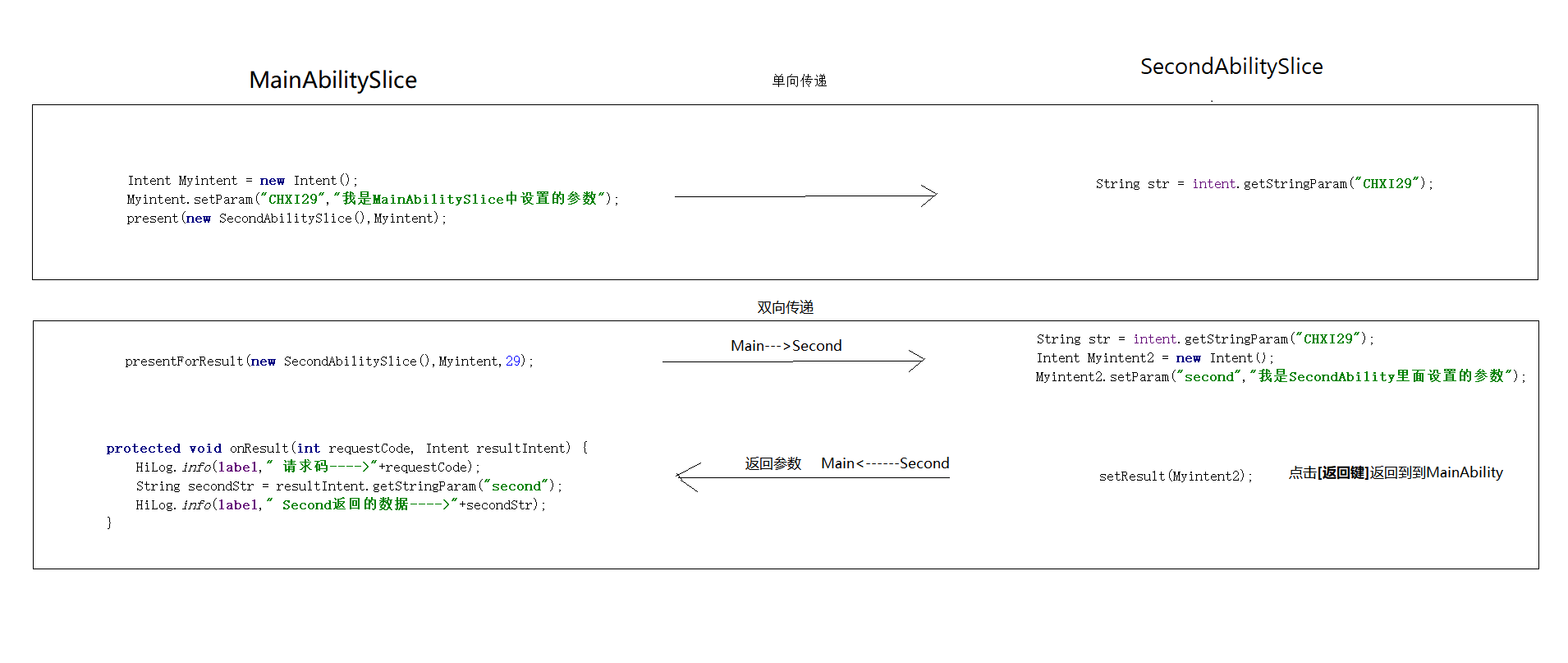
此图描述了 数据单向传递 与 双向传递时 需要调用到的方法。
单向数据传递案例演示(使用官网快速入门案例)
官网案例链接 https://developer.harmonyos.com/cn/docs/documentation/doc-guides/start-first-page-0000000000038014
此案例演示的是 在MainAbilitySlice的intent中存入数据 跳转到SecondAbilitySlice, 并展示到SecondAbilitySlice 的text中
MainAbilitySlice具体代码
public class MainAbilitySlice extends AbilitySlice {
    HiLogLabel label =new HiLogLabel(HiLog.LOG_APP,0xFFFFF,"CHXI");
    @Override
    public void onStart(Intent intent) {

        super.setUIContent(ResourceTable.Layout_ability_main);
        Button button = (Button) findComponentById(ResourceTable.Id_button);
        button.setClickedListener(new Component.ClickedListener() {
            @Override
            public void onClick(Component component) {
                Intent myIntent = new Intent();
                myIntent.setParam("CHXI", "29");
                //导航到SecondAbilitySlice,并且携带myIntent
                present(new SecondAbilitySlice(), myIntent);
            }
        });
    }
}
SecondAbilitySlice具体代码
 HiLogLabel label = new HiLogLabel(HiLog.LOG_APP,0xFFFFF,"CHXI29");
    @Override
    public void onStart(Intent intent) {
        super.onStart(intent);

        // 声明布局
        DependentLayout myLayout = new DependentLayout(this);

        // 设置布局宽高
        myLayout.setWidth(DependentLayout.LayoutConfig.MATCH_PARENT);
        myLayout.setHeight(DependentLayout.LayoutConfig.MATCH_PARENT);

        // 设置布局背景为白色
        ShapeElement background = new ShapeElement();
        background.setRgbColor(new RgbColor(255, 255, 255));
        myLayout.setBackground(background);

        // 创建一个文本
        Text text = new Text(this);
        text.setText("Hi there ~");
        text.setWidth(DependentLayout.LayoutConfig.MATCH_PARENT);
        text.setTextSize(70);
        text.setTextColor(Color.BLACK);

        //设置按钮背景色
        ShapeElement backgroundbutton = new ShapeElement();
        backgroundbutton.setRgbColor(new RgbColor(0,200,200));
        //创建一个buttonon
        Button button = new Button(this);
        button.setBackground(backgroundbutton);
        button.setText("按钮");
        button.setTextSize(100, Text.TextSizeType.PX);
        //添加单击事件
        button.setClickedListener(new Component.ClickedListener() {
            @Override
            public void onClick(Component component) {
                //根据key获取myIntent里面value 并展示到text中
                String str = intent.getStringParam("CHXI");
                text.setText(str);
            }
        });


        // 设置文本的布局
        DependentLayout.LayoutConfig textConfig = new DependentLayout.LayoutConfig(DependentLayout.LayoutConfig.MATCH_CONTENT, DependentLayout.LayoutConfig.MATCH_CONTENT);
        textConfig.addRule(DependentLayout.LayoutConfig.CENTER_IN_PARENT);
        DependentLayout.LayoutConfig butconfig  = new DependentLayout.LayoutConfig(DependentLayout.LayoutConfig.MATCH_CONTENT,DependentLayout.LayoutConfig.MATCH_CONTENT);
        text.setLayoutConfig(textConfig);
        //设置按钮布局
        butconfig.setMarginLeft(100);
        butconfig.setMarginTop(1300);
        button.setLayoutConfig(butconfig);

        myLayout.addComponent(button);
        myLayout.addComponent(text);

        super.setUIContent(myLayout);
    }
实验截图
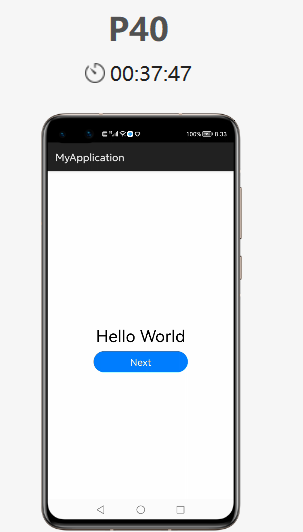
1、启动后主页面
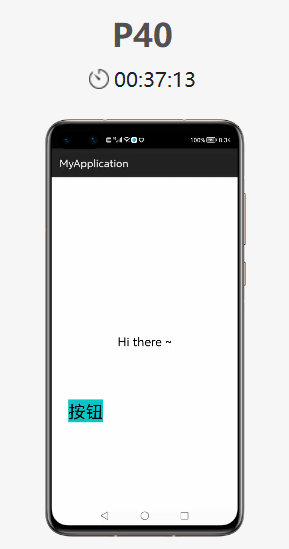
2、点击Next后跳转到SecondAbilitySlice
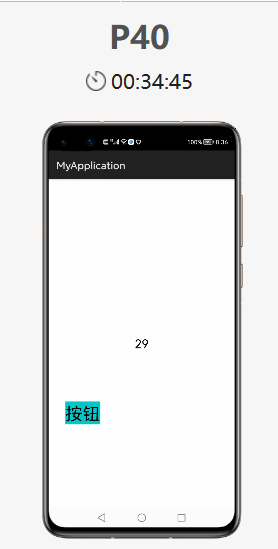
3、点击【按钮】获取到MainAbilitySlice中存放的值 ‘29’,并展示到text中
–后续继续完善
©本站发布的所有内容,包括但不限于文字、图片、音频、视频、图表、标志、标识、广告、商标、商号、域名、软件、程序等,除特别标明外,均来源于网络或用户投稿,版权归原作者或原出处所有。我们致力于保护原作者版权,若涉及版权问题,请及时联系我们进行处理。
分类
其它
标签
Intent数据传递
(单向)
相关推荐
同样使用@State装饰器,有时第三层数据可以更新UI,有时不可以,是什么原因?
 鸿蒙小助手
鸿蒙小助手 5330
5330 0
0使用 @Builder数据刷新后UI没有刷新,导致图片错乱怎么解决?
鸿蒙小助手 7381 0@ObservedV2和@Trace装饰的单例class数据,修改后为什么UI不更新?
鸿蒙小助手 1643 0 宋你一朵小红花
我还没有写个人简介......
881
帖子
0
提问
1
粉丝
最新发布
华为鸿蒙 HarmonyOS 6.0.0.108 SP2 Developer 版本新增 9 套桌面图标
2025-10-20 23:17:16 发布注意!华为开启鸿蒙6.0系统推送,稳定性提升
2025-10-14 15:10:36 发布热门推荐