 GeorgePanda 2025-06-30 22:33:40 发布
## 【HarmonyOS Next】鸿蒙应用弹框和提示气泡详解(二)
## 一、前言
上期围绕 HarmonyOS Next 最新API趋势,介绍了鸿蒙应用中最新的自定义弹框和提示气泡的使用。
在鸿蒙ArkUI响应式布局中,早期弹框 Dialog 和提示气泡 Toast 与 UI 绑定,在纯逻辑类文件中使用不便,后续 API 迭代实现了解耦,且与 UI 强绑定的方式已不推荐。接着详细讲解了鸿蒙中弹框的使用,弹框有系统定制弹框(包括基础弹框如警告弹框、列表弹窗,以及带业务性质的 PickerDialog 弹框如日历选择器弹窗等)和自定义弹框两种方式,并给出了相应示例代码。
详细内容,可参见【HarmonyOS Next】鸿蒙应用弹框和提示气泡详解(一)
本期主要讲解浮层(OverlayManager),半模态页面(bindSheet),全模态页面(bindContentCover)。
## 二、OverlayManager,bindSheet,bindContentCover详解
**(1)OverlayManager,bindSheet,bindContentCover分别是什么?**
上期提到,在自定义弹框的API延伸中,为了实现UI解耦,官方特意在page界面之上添加,UI框架层预留挂靠节点。
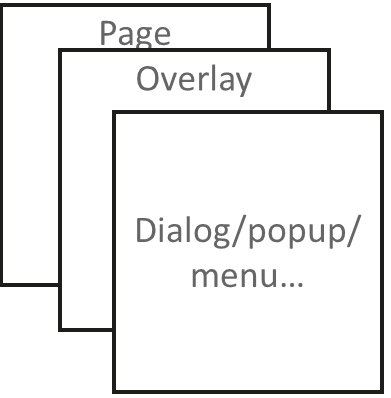
这样的设计很好,可以在page界面之上,做自定义UI的处理。根据业务使用的不同,page之上是OverlayManager(浮层),再之上就是各种弹框气泡的层级,bindSheet,bindContentCover也在其中,这个层级默认为应用内顶层。
例如page页面切换,最上层不会受影响。浮层的效果,就是和page页面绑定在一起,页面消失,浮层也会。
而所谓的模态和半模态的概念,可以理解为全屏覆盖下方page界面的自定义UI即模板,反之则是半模态。
**(2)OverlayManager**
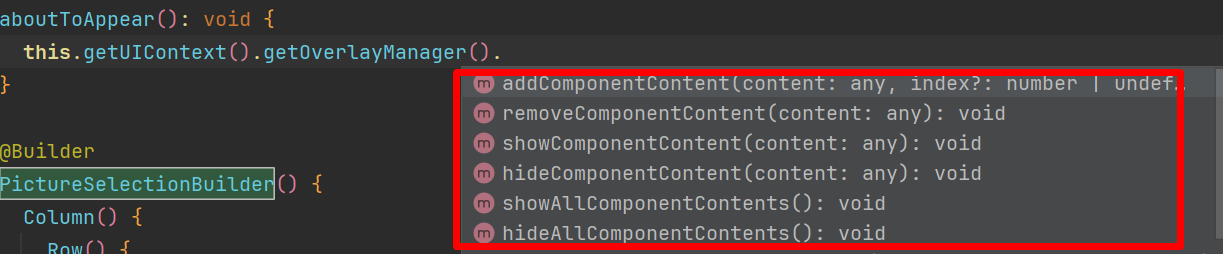
可以看到浮层的设置很简单,通过ComponentContent的形式,将需要的自定义View进行包裹。操作浮层对象进行添加,删除,显示,隐藏等操作。
浮层对象也放置到了上下文中,这样使用起来,也会和UI解耦,可以在纯业务类中处理调用时机。
例如在首页,添加活动icon入口,就可以使用浮层实现。
```typescript
@Builder
function builderText() {
Column() {
Text("自定义UI")
.fontSize(30)
.fontWeight(FontWeight.Bold)
}
.width(px2vp(200))
.height(px2vp(200))
.backgroundColor(Color.Yellow)
}
let componentContentTest = new ComponentContent(
this.uiContext, wrapBuilder(builderText));
this.uiContext.getOverlayManager().addComponentContent(componentContentTest, 1);
// 1为新增节点在OverlayManager上的层级位置。
```
其他接口操作同理,调用很简单。接口调用详情参见官方API文档:https://developer.huawei.com/consumer/cn/doc/harmonyos-references/js-apis-arkui-uicontext#overlaymanager12
**(2)bindSheet,bindContentCover**
绑定半模态或者模态,实际上是在控件上添加一个组合式的自定义UI。
通过开关参数,UI界面Builder,Anim动画控制其显示或者隐藏。
我们有很多场景,需要在应用中用户进行额外的操作或确认,但又不想打断当前任务时,可使用bindSheet或者bindContentCover弹出半模态or模态自定义UI,来获取用户反馈。
比如在设置界面中,当用户点击某个设置项需要进一步确认修改时,通过bindSheet弹出包含确认和取消按钮的半模态弹窗,让用户进行选择,而当前的设置界面仍保持可见,用户可以清晰地看到之前的设置内容,便于对比和操作。
```typescript
@Entry
@Component
struct SheetTestPage {
@State isShow: boolean = false
@Builder
myBuilder() {
Column() {
Button("close modal")
.margin(10)
.fontSize(20)
.onClick(() => {
this.isShow = false;
})
}
.width('100%')
.height('100%')
}
build() {
Column() {
Button("transition modal 1")
.onClick(() => {
this.isShow = true
})
.fontSize(20)
.margin(10)
// isShow是开关参数,myBuilder是自定义UI
.bindSheet($$this.isShow, this.myBuilder(), {
height: px2vp(500),
backgroundColor: Color.Yellow,
onWillAppear: () => {
console.log("BindSheet onWillAppear.")
},
onAppear: () => {
console.log("BindSheet onAppear.")
},
onWillDisappear: () => {
console.log("BindSheet onWillDisappear.")
},
onDisappear: () => {
console.log("BindSheet onDisappear.")
}
})
}
.justifyContent(FlexAlign.Center)
.width('100%')
.height('100%')
}
}
```
bindContentCover使用同理,只不过效果是全屏遮挡。
## 三、源码示例Demo:
```typescript
import { curves, ComponentContent, OverlayManager } from '@kit.ArkUI';
// 定义图片信息接口
interface PictureInfo {
name: string;
picNum: string;
}
// 定义借阅人信息接口
interface BorrowerInfo {
name: string;
cardNum: string;
}
class Params {
context: UIContext;
offset: Position;
constructor(context: UIContext, offset: Position) {
this.context = context;
this.offset = offset;
}
}
@Builder
function builderOverlay(params: Params) {
Column() {
Stack() {
}.width(50).height(50).backgroundColor(Color.Yellow).position(params.offset).borderRadius(50)
.onClick(() => {
params.context.showAlertDialog(
{
title: 'title',
message: 'Text',
autoCancel: true,
alignment: DialogAlignment.Center,
gridCount: 3,
confirm: {
value: 'Button',
action: () => { }
},
cancel: () => { }
}
);
});
}.focusable(false).width('100%').height('100%').hitTestBehavior(HitTestMode.Transparent);
}
@Entry
@Component
struct PictureLibraryDemo {
// 图片馆的图片列表
private pictureList: Array<PictureInfo> = [
{ name: '图片1', picNum: 'PIC001' },
{ name: '图片2', picNum: 'PIC002' },
{ name: '图片3', picNum: 'PIC003' },
{ name: '图片4', picNum: 'PIC004' }
];
// 借阅人列表
private borrowerList: Array<BorrowerInfo> = [
{ name: '张三', cardNum: '123456789' },
{ name: '李四', cardNum: '987654321' },
{ name: '王五', cardNum: '555555555' },
{ name: '赵六', cardNum: '666666666' }
];
// 半模态转场控制变量
@State isSheetShow: boolean = false;
// 全模态转场控制变量,用于选择借阅人
@State isPresentForBorrower: boolean = false;
// 全模态转场控制变量,用于选择图片
@State isPresentForPicture: boolean = false;
// 用于存储当前选择的图片信息
@State currentPicture: PictureInfo | null = null;
// 用于存储当前选择的借阅人信息
@State currentBorrower: BorrowerInfo | null = null;
private uiContext: UIContext = this.getUIContext();
private overlayNode: OverlayManager = this.uiContext.getOverlayManager();
private overlayContent: ComponentContent<Params>[] = [];
controller: TextInputController = new TextInputController();
aboutToAppear(): void {
let uiContext = this.getUIContext();
let componentContent = new ComponentContent(
this.uiContext, wrapBuilder<[Params]>(builderOverlay),
new Params(uiContext, { x: 0, y: 100 })
);
this.overlayNode.addComponentContent(componentContent, 0);
this.overlayContent.push(componentContent);
}
aboutToDisappear(): void {
let componentContent = this.overlayContent.pop();
this.overlayNode.removeComponentContent(componentContent);
}
@Builder
PictureSelectionBuilder() {
Column() {
Row() {
Text('选择图片')
.fontSize(20)
.fontColor(Color.White)
.width('100%')
.textAlign(TextAlign.Center)
.padding({ top: 30, bottom: 15 });
}
.backgroundColor(0x007dfe);
Row() {
Text('+ 添加图片')
.fontSize(16)
.fontColor(0x333333)
.margin({ top: 10 })
.padding({ top: 20, bottom: 20 })
.width('92%')
.borderRadius(10)
.textAlign(TextAlign.Center)
.backgroundColor(Color.White);
}
Column() {
ForEach(this.pictureList, (item: PictureInfo, index: number) => {
Row() {
Column() {
if (index % 2 == 0) {
Column()
.width(20)
.height(20)
.border({ width: 1, color: 0x007dfe })
.backgroundColor(0x007dfe);
} else {
Column()
.width(20)
.height(20)
.border({ width: 1, color: 0x007dfe });
}
}
.width('20%');
Column() {
Text(item.name)
.fontColor(0x333333)
.fontSize(18);
Text(item.picNum)
.fontColor(0x666666)
.fontSize(14);
}
.width('60%')
.alignItems(HorizontalAlign.Start);
Column() {
Text('选择')
.fontColor(0x007dfe)
.fontSize(16)
.onClick(() => {
this.currentPicture = item;
this.isPresentForBorrower = true;
});
}
.width('20%');
}
.padding({ top: 10, bottom: 10 })
.border({ width: { bottom: 1 }, color: 0xf1f1f1 })
.width('92%')
.backgroundColor(Color.White);
});
}
.padding({ top: 20, bottom: 20 });
Text('确认选择图片')
.width('90%')
.height(40)
.textAlign(TextAlign.Center)
.borderRadius(10)
.fontColor(Color.White)
.backgroundColor(0x007dfe)
.onClick(() => {
// 这里可以添加确认选择图片后的逻辑,比如关闭模态等
this.isPresentForPicture = false;
});
}
.size({ width: '100%', height: '100%' })
.backgroundColor(0xf5f5f5);
}
@Builder
BorrowerSelectionBuilder() {
Column() {
Row() {
Text('选择借阅人')
.fontSize(20)
.fontColor(Color.White)
.width('100%')
.textAlign(TextAlign.Center)
.padding({ top: 30, bottom: 15 });
}
.backgroundColor(0x007dfe);
Row() {
Text('+ 添加借阅人')
.fontSize(16)
.fontColor(0x333333)
.margin({ top: 10 })
.padding({ top: 20, bottom: 20 })
.width('92%')
.borderRadius(10)
.textAlign(TextAlign.Center)
.backgroundColor(Color.White);
}
Column() {
ForEach(this.borrowerList, (item: BorrowerInfo, index: number) => {
Row() {
Column() {
if (index % 2 == 0) {
Column()
.width(20)
.height(20)
.border({ width: 1, color: 0x007dfe })
.backgroundColor(0x007dfe);
} else {
Column()
.width(20)
.height(20)
.border({ width: 1, color: 0x007dfe });
}
}
.width('20%');
Column() {
Text(item.name)
.fontColor(0x333333)
.fontSize(18);
Text(item.cardNum)
.fontColor(0x666666)
.fontSize(14);
}
.width('60%')
.alignItems(HorizontalAlign.Start);
Column() {
Text('选择')
.fontColor(0x007dfe)
.fontSize(16)
.onClick(() => {
this.currentBorrower = item;
// 这里可以添加选择借阅人后的逻辑,比如记录借阅信息等
console.log(`借阅人 ${this.currentBorrower.name} 选择了图片 ${this.currentPicture?.name}`);
this.isPresentForBorrower = false;
});
}
.width('20%');
}
.padding({ top: 10, bottom: 10 })
.border({ width: { bottom: 1 }, color: 0xf1f1f1 })
.width('92%')
.backgroundColor(Color.White);
});
}
.padding({ top: 20, bottom: 20 });
Text('确认选择借阅人')
.width('90%')
.height(40)
.textAlign(TextAlign.Center)
.borderRadius(10)
.fontColor(Color.White)
.backgroundColor(0x007dfe)
.onClick(() => {
// 这里可以添加确认选择借阅人后的逻辑,比如关闭模态等
this.isPresentForBorrower = false;
});
}
.size({ width: '100%', height: '100%' })
.backgroundColor(0xf5f5f5);
}
@Builder
PictureLibraryMain() {
Column() {
Row() {
Text('图片馆借阅系统')
.fontSize(20)
.fontColor(Color.White)
.width('100%')
.textAlign(TextAlign.Center)
.padding({ top: 30, bottom: 15 });
}
.backgroundColor(0x007dfe);
Row() {
Text('+ 借阅图片')
.fontSize(16)
.fontColor(0x333333)
.margin({ top: 10 })
.padding({ top: 20, bottom: 20 })
.width('92%')
.borderRadius(10)
.textAlign(TextAlign.Center)
.backgroundColor(Color.White)
.onClick(() => {
this.isPresentForPicture = true;
});
}
// 可以在这里显示当前借阅的信息等
}
.size({ width: '100%', height: '100%' })
.backgroundColor(0xf5f5f5);
}
// 第二步:定义半模态展示界面
// 通过@Builder构建模态展示界面
@Builder
MySheetBuilder() {
Column() {
Column() {
// 这里可以添加一些图片馆的基本信息或其他相关内容
Text('图片馆信息')
.fontSize(18)
.fontColor(0x333333)
.padding({ top: 10, bottom: 10 });
}
.width('92%')
.margin(15)
.backgroundColor(Color.White)
.shadow({ radius: 30, color: '#aaaaaa' })
.borderRadius(10);
Column() {
Text('+ 选择图片/借阅人')
.fontSize(18)
.fontColor(Color.Orange)
.fontWeight(FontWeight.Bold)
.padding({ top: 10, bottom: 10 })
.width('60%')
.textAlign(TextAlign.Center)
.borderRadius(15)
.onClick(() => {
// 这里可以根据具体情况决定是先选择图片还是借阅人,或者同时选择等逻辑
this.isPresentForPicture = true;
})
// 通过全模态接口,绑定模态展示界面MyContentCoverBuilder。transition属性支持自定义转场效果,此处定义了x轴横向入场
.bindContentCover($$this.isPresentForPicture, this.PictureSelectionBuilder(), {
transition: TransitionEffect.translate({ x: 500 }).animation({ curve: curves.springMotion(0.6, 0.8) })
});
}
.padding({ top: 60 });
}
}
build() {
Column() {
Row() {
// 这里可以添加一些页面顶部的信息,比如图片馆的标志等
Text('图片馆')
.fontSize(20)
.fontColor(Color.White)
.width('100%')
.textAlign(TextAlign.Center)
.padding({ top: 20, bottom: 10 });
}
.backgroundColor(0x007dfe);
this.PictureLibraryMain();
Row() {
Text("点击显示图片馆信息")
}
.width('100%')
.margin({ top: 200, bottom: 30 })
.borderRadius(10)
.backgroundColor(Color.White)
.onClick(() => {
this.isSheetShow = !this.isSheetShow;
})
// 第一步:定义半模态转场效果
.bindSheet($$this.isSheetShow, this.MySheetBuilder(), {
height: SheetSize.MEDIUM,
title: { title: "图片馆操作" },
});
}
.width('100%')
.height('100%')
.backgroundColor('#30aaaaaa');
}
}
```
暂无评论数据
发布
相关推荐
 智慧的键盘侠
 75
75 0
0 永不编译通过 210 0 恒久 145 0
 Legent 108 0
 码农小马 205 0
 GeorgePanda
HarmonyOS认证学习资源创作专家,华为HDE专家,鸿蒙讲师,作者。目前任职鸿蒙应用架构师。 历经腾讯,宝马,研究所,金融。 待过私企,外企,央企。 深耕大应用开发领域十年。 OpenHarmony,HarmonyOS,Flutter,H5,Android,IOS。
帖子
提问
粉丝
三分钟理解compatibleSdkVersion compileSdkVersion与 targetSdkVersion
2026-06-15 19:10:39 发布【HarmonyOS 7】鸿蒙应用 AI Coding 工具链 DevEco Code 到 DevEco CLI
2026-06-15 18:24:08 发布 京公网安备:11010502051901号